Infisical
Infisical is a secrets management platform that helps teams securely store, sync, and rotate secrets across their infrastructure. With Infisical’s OpenRouter integration, you can automatically rotate your API keys on a schedule, ensuring your credentials stay secure with zero-downtime rotation.
Prerequisites
Before setting up API key rotation, you’ll need an OpenRouter Provisioning API key. Provisioning keys are special keys used only for key management operations (create, list, delete keys) and cannot be used for model completion requests.
Create an OpenRouter Provisioning API Key
Navigate to OpenRouter Settings and go to the Provisioning API Keys section. Click Create New Key, complete the key creation flow, and copy the generated Provisioning API key. Store it securely as you’ll need it when creating the Infisical connection.
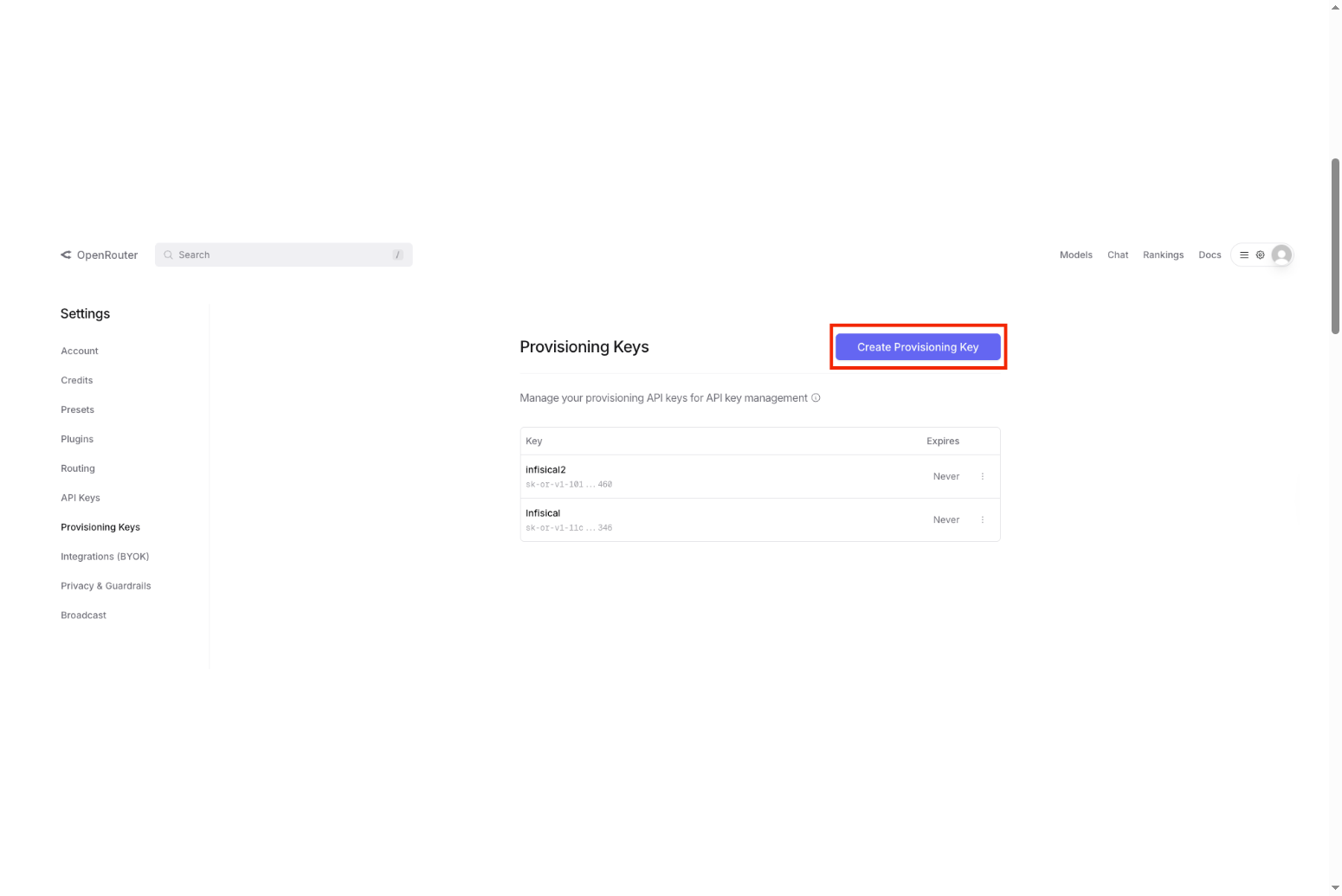
For more details on Provisioning API keys and key management, see OpenRouter’s Provisioning Keys documentation.
Setting Up the OpenRouter Connection
The first step is to create an OpenRouter connection in Infisical that will be used to manage your API keys.
Create the Connection in Infisical
In your Infisical dashboard, navigate to Organization Settings and then App Connections (or the App Connections page in your project). Click Add Connection and choose OpenRouter from the list of available connections.
Complete the form with your OpenRouter Provisioning API Key from the previous step, an optional description, and a name for the connection (for example, “openrouter-production”). After clicking Create, Infisical validates the key against OpenRouter’s API and your connection is ready to use.
For detailed instructions with screenshots, see Infisical’s OpenRouter Connection documentation.
Configuring API Key Rotation
Once your connection is set up, you can configure automatic API key rotation.
Create an API Key Rotation
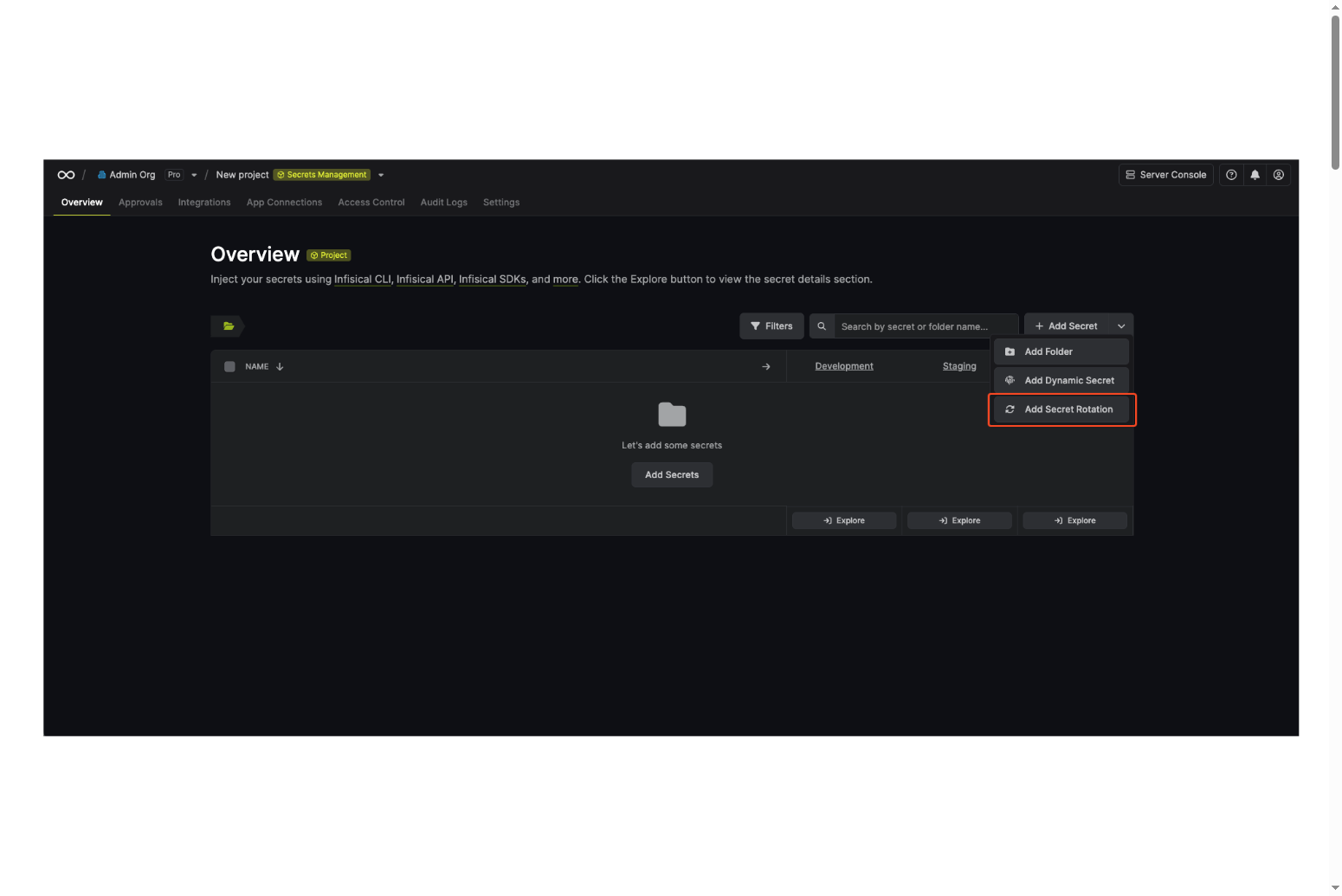
Navigate to your Secret Manager Project’s Dashboard in Infisical and select Add Secret Rotation from the actions dropdown. Choose the OpenRouter API Key option.
Configure Rotation Behavior
Set up how and when your keys should rotate:
Auto-Rotation Enabled controls whether keys rotate automatically on the interval. Turn this off to rotate only manually or to pause rotation temporarily.
Rotate At specifies the local time of day when rotation runs once the interval has elapsed.
Rotation Interval sets the interval in days after which a rotation is triggered.
OpenRouter Connection selects the connection (with a Provisioning API key) that will create and delete API keys during rotation.
Set API Key Parameters
Configure the properties of the rotated API keys:
Key name is the display name for the key in OpenRouter (required).
Limit sets an optional spending limit in USD for this key.
Limit reset determines how often the limit resets: daily, weekly, or monthly.
Include BYOK in limit is an optional setting that controls whether usage from your own provider keys (Bring Your Own Key) counts toward this key’s spending limit. When disabled, only OpenRouter credits are counted. When enabled, BYOK usage is included in the limit.
Map to Secret Name
Specify the secret name where the rotated API key will be stored. This is the name of the secret in Infisical where the rotated API key value will be accessible.
Complete the Setup
Give your rotation a name and optional description, then review your configuration and click Create Secret Rotation. Your OpenRouter API Key rotation is now active. The current API key is available as a secret at the mapped path, and rotations will create a new key, switch the active secret to it, then revoke the previous key for zero-downtime rotation.
For the complete API reference and additional options, see Infisical’s OpenRouter API Key Rotation documentation.
Understanding BYOK and Limits
BYOK (Bring Your Own Key) on OpenRouter lets you use your own provider API keys (such as OpenAI or Anthropic) so you pay providers directly while OpenRouter charges a small fee on those requests.
The Include BYOK in limit option controls whether BYOK usage counts toward your key’s spending limit. When disabled, only OpenRouter credit usage counts toward the limit and BYOK usage is tracked separately. When enabled, usage from your own provider keys is included in the limit, and once the limit is reached, the key is subject to OpenRouter’s rate limits until the next reset.
For more details, see OpenRouter BYOK documentation and OpenRouter limits documentation.
Learn More
- Infisical OpenRouter Connection: https://infisical.com/docs/integrations/app-connections/openrouter
- Infisical OpenRouter API Key Rotation: https://infisical.com/docs/documentation/platform/secret-rotation/openrouter-api-key
- OpenRouter Provisioning Keys: https://openrouter.ai/docs/api/keys/provisioning-keys
- OpenRouter Quick Start Guide: https://openrouter.ai/docs/quickstart